
Your FiveM server comes with a dedicated MySQL server that provides superior performance and reliability compared to shared database solutions. This guide will help you connect to your dedicated MySQL database using HeidiSQL.
Your Database Connection Details:
Important: Use the connection information provided in your server control panel:
- Hostname/IP: [Your unique IP Adress] (or your specific server IP)
- Port: [Your unique port number - this will NOT be 3306, you will have your own dedicated port]
- Username: [Root]
- Password: [Your secure database password]
- Database Name: [Your database name]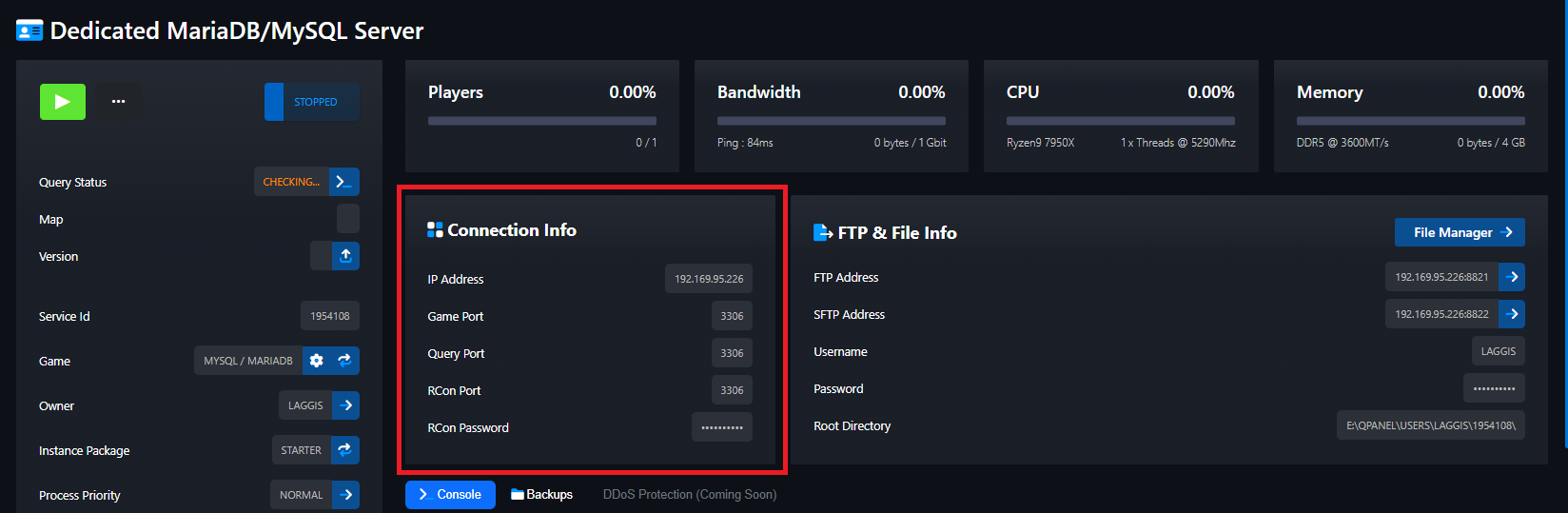
Step 1: Download and Install HeidiSQL
1. Visit the official HeidiSQL website (https://www.heidisql.com/)
2. Download the latest version of HeidiSQL
3. Run the installer and follow the installation instructions
4. Launch HeidiSQL after installation
Step 2: Create a New Database Connection
1. Open HeidiSQL - Click on the desktop shortcut or start menu item
2. Session Manager - The session manager window will appear automatically
Step 3: Configure Your Connection Settings
Port: [Your unique port number - this will NOT be 3306, you will have your own dedicated port]
Username: [Root]
Password: [Your secure database password]
Database Name: [Your database name]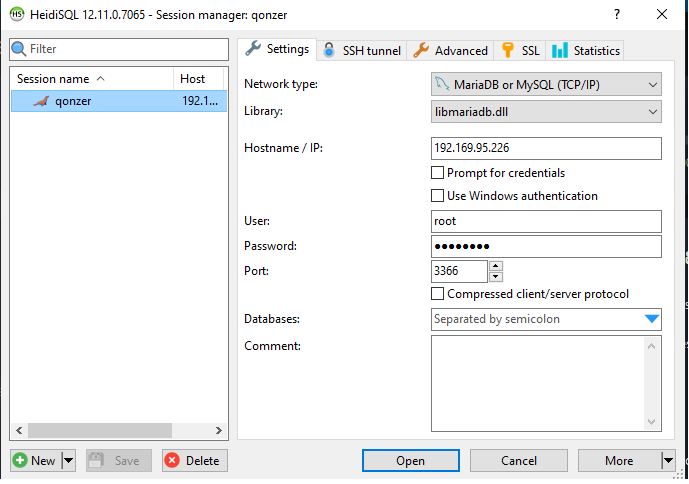
Step 4: Press Login
1. Click the "Open" button to connect to your dedicated MySQL server
2. HeidiSQL will establish the connection using your configured settings
3. Once connected, you'll see your databases and tables in the left panel
4. You're now ready to manage your FiveM server's database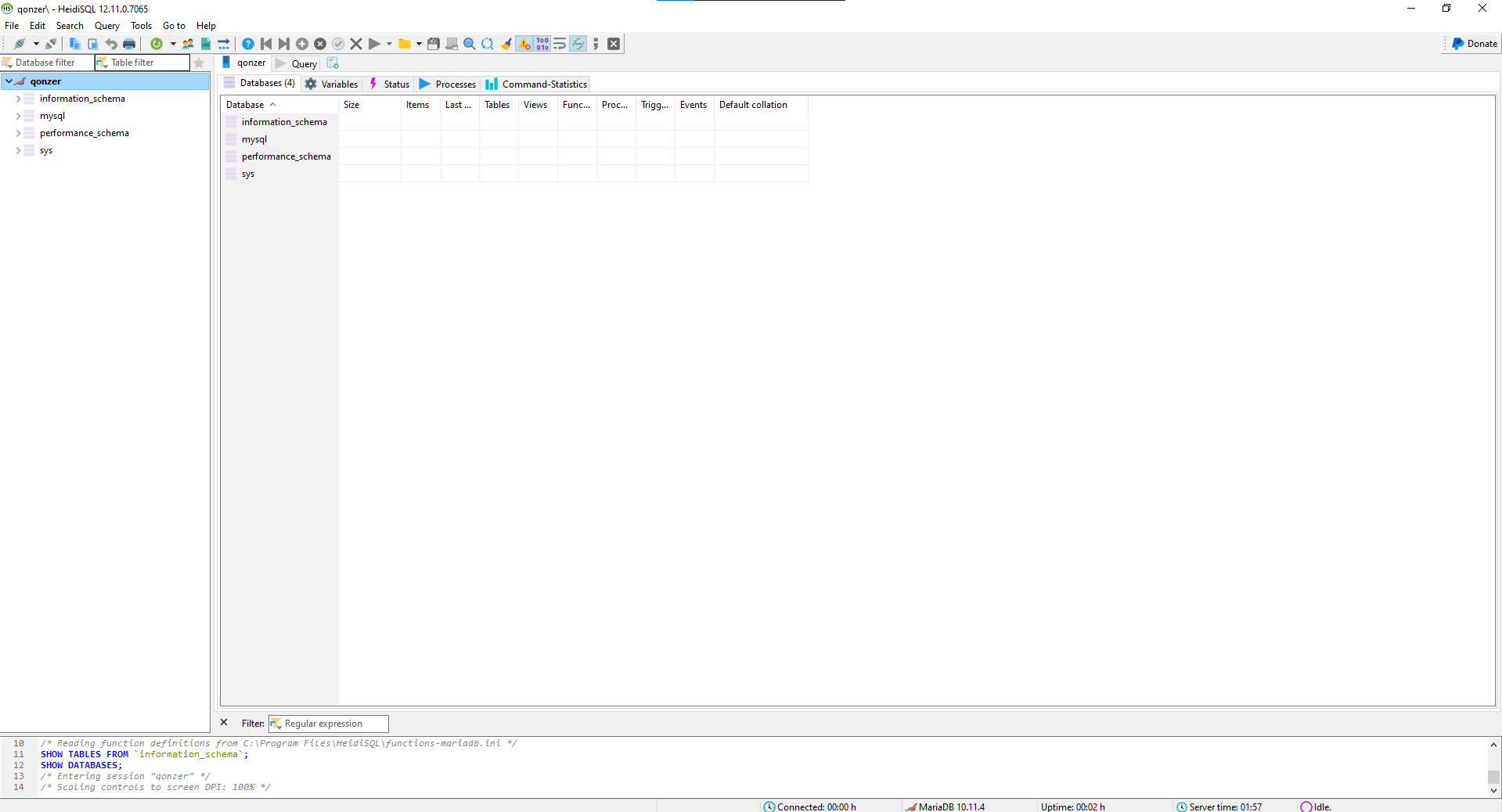
Need Help?
Click the Live Support button on our homepage to get help instantly. Our team can:
- Help troubleshoot connection issues
- Assist with database optimization
- Guide you through advanced HeidiSQL features
- Provide support for your dedicated MySQL server